Create a Web Page 101
Making Web Pages Intro
What is a Web Page?
Why Make a Web Page?
The History of HTML
Learn HTML or XHTML?
Basic HTML
Basic HTML Tutorials
Basic HTML Necessities
How to Make a Web Page
How to Edit a Web Page
The Basics of HTML Tags
Basic HTML Page Structure
HTML Attributes
HTML Font Codes
HTML Font Codes Intro
HTML Font Color Codes
HTML Font Size Codes
HTML Font Style Codes
HTML Bold/Italic Codes
Combining Font Codes
Formatting Text
Formatting Text Intro
Making Paragraphs
Miscellaneous Formatting
Headings & Subheadings
Creating Hyperlinks
Using Graphics
Using Graphics on the Web
Add Graphics to Your Pages
Graphics and Accessibility
How to Align Graphics
Page Color & Background
Graphics as Hyperlinks
Horizontal Rules
Creating Tables
HTML Tables Tutorials
HTML Table Fundamentals
Background & Border Color
Table Frames & Rules
Table Width and Alignment
Cells 1 -Space & Alignment
Cells 2 -Row Column Span
Cells 3 -Width & Height
Making Lists
HTML Frames
HTML Frames Tutorials
Using Frames for Layout
Advanced Frame Layouts
Putting Hyperlinks in Frames
Frame Border Width
Color, Margin and Control
Problems with Frames
SmartFrames: A Solution
SSI: An Alternative to Frames
Web Page Forms
Making Feedback Forms
A Simple Feedback Form
Installing NMS FormMail
Debugging Your Setup
My Web Host is Out to Lunch
User Input Components
Text Fields
Checkboxes & Radio Buttons
Dropdown Menus
Push Buttons
Layout and Presentation
Basic CSS
Basic CSS Tutorials
What is CSS?
Why You Should Use CSS
How to Use CSS
Inline Styles
Embedded Style Sheets
External Style Sheets
Class Selectors
ID Selectors
Combining Selectors
CSS Properties
CSS Properties Intro
Font Styles
Width, Height & Spacing
Borders
Backgrounds
Position
Float & Alignment
Hyperlinks
All About Web Hosting
Hosting Your Own Website
What is a Web Host?
Your Website's Home Page
Building a Website Offline
About Free Web Hosting
Best Free Web Hosting
Commercial Web Hosting
How to Get a Domain Name
Ecommerce Web Hosting
Web Hosting Terminology
Free Web Design Tools
Best Free Website Tools
Best Free Text Editors
Best Free Graphics Editors
Free Website Analysis Tools
Setting Up HTML Kit
HTML Kit Introduction
How to install HTML Kit
Screenshot Breakdown
Basic Configuration
Overall Appearance
Shortcuts and Startup
Editing Window
Customizing Toolbars
Using the Favorites Tab
Making a New Actions Bar
Odds and Ends
Free Templates
Free Website Templates
Two Column Fixed Width
Three Column Liquid Layout
Miscellaneous Templates
Dynamic Menu Effects
Two Column Experimental
Terms of Use
About These Templates
Website Templates Help
Getting Started
Template Zip File Download
How to Edit Your Template
What to Edit in the HTML
How to Add Your Logo
Making a Website
Web Design Tips
Web Design Basics
Tables vs. Tableless
Using Tables for Layout
Example Table Layouts
World's Crappiest Web Page
Twitter Backgrounds
Twitter Backgrounds Intro
Cool Twitter Backgrounds
Cool Twitter Backgrounds 2
Plain Twitter Backgrounds
Dark Twitter Backgrounds
Best Twitter Backgrounds
Cute Twitter Backgrounds
Music Twitter Backgrounds
Music Twitter Backgrounds 2
Twitter Backgrounds 101
TERMS OF USE
All About Web Browsers
What is a Web Browser?
Mozilla Firefox
Internet Explorer
Opera
How to Set Up Firefox
Top 5 Firefox Extensions
Contact
Table Cells 1 - Space and Alignment
<table
cellpadding="pixels"<td
align="position" |
Spacing in between table cells Horizontal alignment of cell content Vertical alignment of cell content |
The
cellspacing and cellpadding attributes are used in the <table> tag and apply to all cells in the respective table. The align and valign attributes are used in individual <td> tags and apply respectively to that particular table data cell. All these attributes are described in more detail below:
-
cellpadding="length in pixels"~ Thecellpaddingattribute, used in the<table>tag, specifies how much blank space to display in between the content of each table cell and its respective border. The value is defined as a length in pixels. Hence, acellpadding="10"attribute-value pair will display 10 pixels of blank space on all four sides of the content of each cell in that table. (See Example 1) -
cellspacing="length in pixels"~ Thecellspacingattribute, also used in the<table>tag, defines how much blank space to display in between adjacent table cells and in between table cells and the table border. The value is defined as a length in pixels. Hence, acellspacing="10"attribute-value pair will horizontally and vertically separate all adjacent cells in the respective table by a length of 10 pixels. It will also offset all cells from the table's frame on all four sides by a length of 10 pixels.
Example 1 clearly illustrates the difference between cellpadding and cellspacing:
Example 1 - (cellpadding="10" cellspacing="10")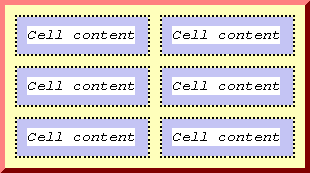
Example 1 - Legend
Cell content
Cellpadding
.....Cell border
Cellspacing
Table border
-
align="left, center or right"~ When thealignattribute is used in a<td>tag as opposed to a<table>tag, it produces a slightly different effect. When used in a<td>tag, thealignattribute will set the horizontal alignment of that respective cell's content. The value can beleft,right,centerorjustify. (Please see Aligning Text for a full description of the resulting effects.) -
valign="top, middle, or bottom"~ The valign attribute can be used in a<td>tag to set the vertical alignment of that respective cell's content. The values that can be used aretop,middle, orbottomand will produce the following effects respectively:
-
top~ The content is aligned flush with the top of the table cell (taking cellpadding into consideration). -
middle~ The content is aligned in the vertical center of the table cell (default value). -
bottom~ The content is aligned flush with the bottom of the table cell (taking cellpadding into consideration).
Example 2A - SOURCE CODE (Default vertical alignment)
<table border="3" bordercolor="#c86260" bgcolor="#ffffcc" width="50%" cellspacing="2" cellpadding="3"><tr><td><b>Breakfast</b></td><td>Orange juice<br>Toast<br>Black coffee</td></tr>
<tr><td><b>Lunch</b></td><td>Tuna sandwich<br>Apple</td></tr>
<tr><td><b>Dinner</b></td><td>Hamburger steak<br>Mashed potatoes<br>Green beans<br>Jello</td></tr></table>
Example 2A - RESULT (Default vertical alignment)Breakfast Orange juice
Toast
Black coffeeLunch Tuna sandwich
AppleDinner Hamburger steak
Mashed potatoes
Green beans
Jello
Example 2B - SOURCE CODE (valign="top" set for left-hand cells)
<table border="3" bordercolor="#c86260" bgcolor="#ffffcc" width="50%" cellspacing="2" cellpadding="3"><tr><td valign="top"><b>Breakfast</b></td><td>Orange juice<br>Toast<br>Black coffee</td></tr>
<tr><td valign="top"><b>Lunch</b></td><td>Tuna sandwich<br>Apple</td></tr>
<tr><td valign="top"><b>Dinner</b></td><td>Hamburger steak<br>Mashed potatoes<br>Green beans<br>Jello</td></tr></table>
Example 2B - RESULT (valign="top" set for left-hand cells)Breakfast Orange juice
Toast
Black coffeeLunch Tuna sandwich
AppleDinner Hamburger steak
Mashed potatoes
Green beans
Jello -
Best Free Stuff
for webmasters
for webmasters
Free Text Editors
Free Graphics Editors
Website Analysis Tools
Free Website Templates
See also:
If you need a .COM web address, you can get one quick and easy at...
| <~BACK | TOP | NEXT~> |